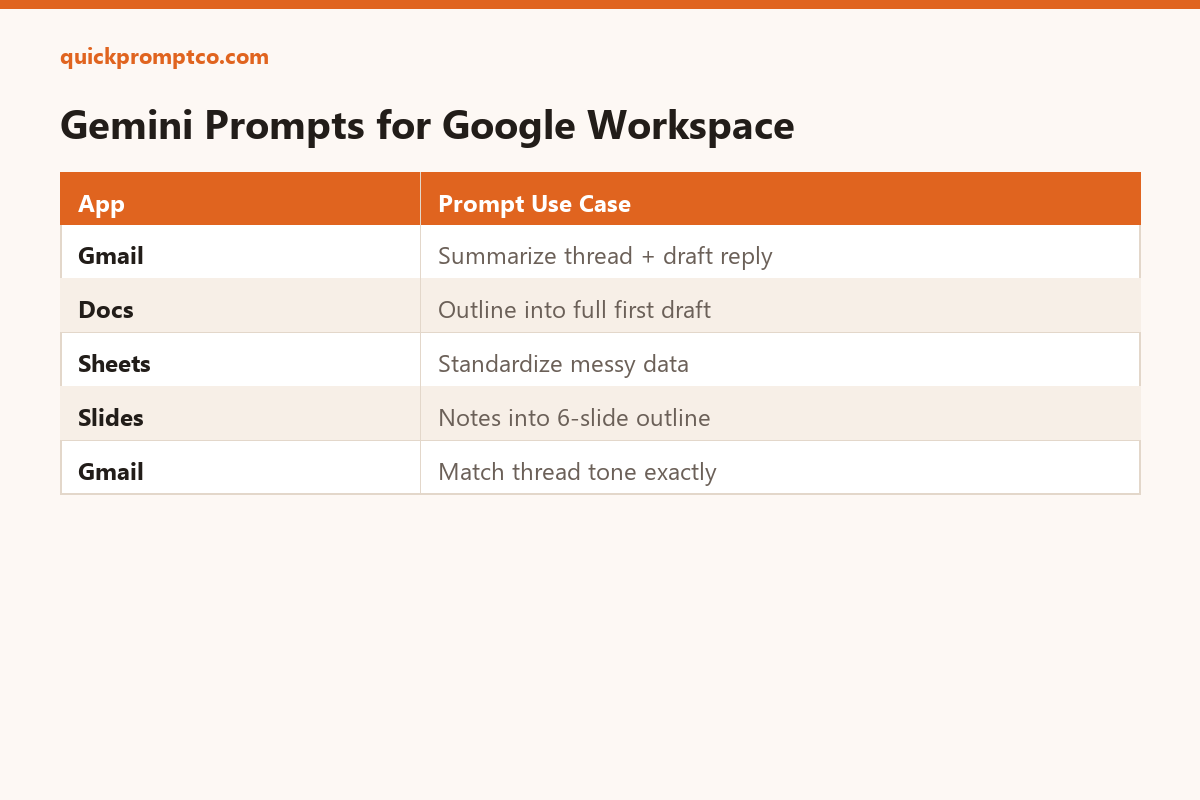
Gemini is already sitting inside Gmail, Docs, and Sheets for a lot of Workspace users — but most people only ever click the default “help me write” suggestion. Here’s how to get more out of it with five specific prompts.
1. Summarize a long email thread before replying
Summarize this email thread in 3 bullets: what's being asked, what's already been agreed, and what's still open. Then draft a reply that addresses the open item.
2. Turn a rough outline into a full first draft in Docs
Here's my outline: [paste bullets]. Expand this into a full first draft, keeping each section under 150 words, in a [formal/casual] tone.
3. Clean up messy data in Sheets
This column has inconsistent formatting (mixed date formats, extra spaces, inconsistent capitalization). Standardize it and flag any rows that look like errors.
4. Generate a Slides outline from meeting notes
Turn these notes into a 6-slide outline: one title per slide, 3 bullet points max per slide, ordered so the conclusion comes last: [paste notes]
5. Draft a reply that matches the thread’s existing tone
Match the tone and formality of this email thread exactly. Draft a reply that confirms [detail] and asks about [detail], in 4 sentences or fewer.
Why this works
Gemini inside Workspace already has the document or thread as context — the trick is giving it a specific job instead of a vague “help me write,” which is what triggers the generic, forgettable suggestions.
Leave a Reply