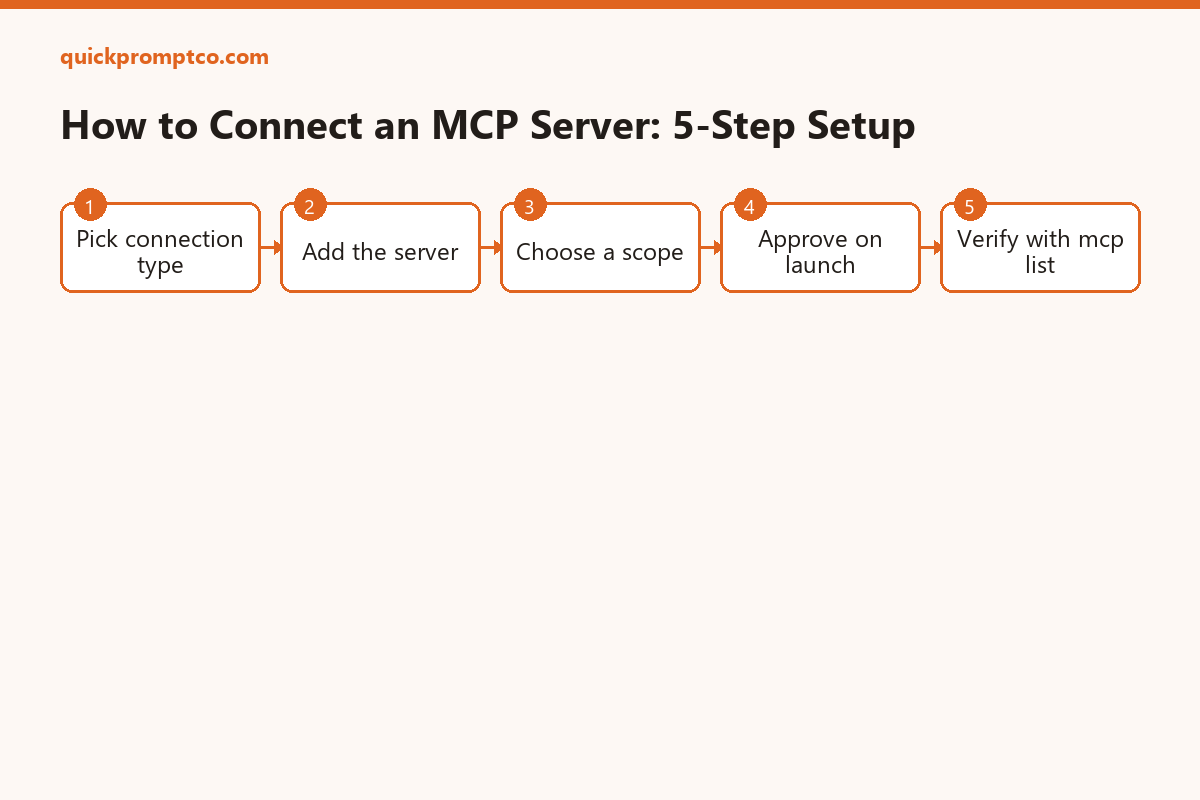
MCP (Model Context Protocol) servers give Claude Code access to outside tools and data — a Notion workspace, a Playwright browser, a private API. Claude Code has a built-in claude mcp command for adding, checking, and removing these servers without touching a config file by hand. This guide walks through both connection types and how to confirm one actually works.
Quick Start
Connect a remote HTTP-based MCP server in one line — no local install, no package to run.
claude mcp add --transport http notion https://mcp.notion.com/mcpRestart Claude Code, then run /mcp inside a session to see it listed as connected. Total time: about 2 minutes.
⚡ Copy This Prompt: Let Claude Code Install and Verify It For You
Skip Steps 1-5 below entirely and hand the whole thing to the agent instead. Fill in the bracketed line with the server you want, paste the rest as-is:
You have access to the `claude mcp` CLI in this project. Do the following and report back — do not tell me it's done unless step 3 actually confirms it:

1. Run `claude mcp list` to see what's already configured.
2. Add this MCP server: [PASTE THE SERVER'S NAME, URL/PACKAGE, AND TRANSPORT TYPE HERE — e.g. "notion, https://mcp.notion.com/mcp, http" or "airtable, npx -y airtable-mcp-server, stdio with AIRTABLE_API_KEY=..."]
3. Run `claude mcp list` again and confirm the server shows as Connected.
4. If it does NOT show Connected, do not report success. Tell me: the exact status shown, the most likely cause (missing auth, wrong URL/package name, missing prerequisite), and the specific command to fix it.This works because Claude Code can run its own CLI commands in a session — it adds the server, re-checks the connection, and only tells you it’s done once claude mcp list actually agrees.
What You’ll Need
| Requirement | Why You Need It | Time |
|---|---|---|
| Claude Code installed | The claude mcp command ships with it — nothing extra to install | 0 min |
| An MCP server URL or package name | What you’re actually connecting to (remote HTTP endpoint or local npm package) | ~1 min to find |
| Node.js (for local servers only) | Most stdio MCP servers run via npx | ~5 min if missing |
| API key or token (some servers) | Private servers need auth headers or env vars to connect | ~2 min |
Step-by-Step Setup
Prefer to do it by hand instead of delegating to the agent? Here’s the manual version of the same steps.
Step 1 — Pick a connection type
~1 minRemote HTTP is the recommended default — the server runs elsewhere and Claude Code just connects over the network. Local stdio runs the server as a process on your own machine, usually via npx. Use HTTP whenever the tool offers it; fall back to stdio for local-only tools like a filesystem or browser server.
Step 2 — Add a remote HTTP server
~1 minBasic syntax, plus a real example connecting to Notion:
claude mcp add --transport http notion https://mcp.notion.com/mcpIf the server needs a bearer token, pass it with --header:
claude mcp add --transport http secure-api https://api.example.com/mcp \
--header "Authorization: Bearer your-token"Step 3 — Or add a local stdio server
~2 minUse -- to separate Claude’s own options from the command that launches the server. Example: adding the Airtable server with an API key passed as an environment variable:
claude mcp add --env AIRTABLE_API_KEY=YOUR_KEY --transport stdio airtable \
-- npx -y airtable-mcp-serverStep 4 — Choose a scope
~1 minUser scope makes the server available across every project on your machine. Project scope writes the server definition into a .mcp.json file in the project root, so it can be committed and shared with teammates:
claude mcp add --scope user --transport http claude-code-docs https://code.claude.com/docs/mcp
claude mcp add --scope project --transport http claude-code-docs https://code.claude.com/docs/mcpA project-scoped server can also be defined directly in .mcp.json:
{
  "mcpServers": {
    "claude-code-docs": { "type": "http", "url": "https://code.claude.com/docs/mcp" },
    "playwright": { "type": "stdio", "command": "npx", "args": ["-y", "@playwright/mcp@latest"] }
  }
}Step 5 — Approve and start using it
~1 minRun claude to start an interactive session. On first launch, project-scoped servers from .mcp.json show a one-time approval prompt — accept it, and the server’s tools become available in that session.
What Each Piece Does
| Piece | What It Does |
|---|---|
| Transport (http / stdio) | How Claude Code talks to the server — over the network, or as a local process |
| Scope (user / project / local) | Who can see the server — just you everywhere, or a shared project team |
.mcp.json | The project-level config file that lists shared servers, meant to be committed |
--header / --env | Passes auth tokens or API keys to the server without hardcoding them in the command |
/mcp panel | In-session view of every connected server and its live status |
Verify the Connection
List every configured server and its health at a glance:
claude mcp listHere’s what the status column actually looks like, and what each one means:
! secure-api Needs authentication
✘ airtable Failed to connect
⏸ claude-code-docs Pending approval (run
claude to approve)
✔ Connected is the only state that means “working.” Everything else needs action: ! Needs authentication (add the missing token), ✘ Failed to connect (check the URL or package name), ⏸ Pending approval (run claude interactively and accept it). For one server’s full detail:
claude mcp get notionCommon Mistakes to Avoid
- Forgetting the
--separator on stdio servers. Without it, Claude Code can’t tell where its own flags end and the server’s launch command begins. - Hardcoding API keys directly in the URL or command. Use
--headeror--envinstead, so secrets aren’t sitting in your shell history or a committed.mcp.json. - Assuming a listed server is actually working. A server appears in
claude mcp listas soon as it’s configured — always check the status column, don’t assume “listed” means “connected.” - Not restarting after adding a server. Claude Code needs a fresh session (or the
/mcppanel refresh) to pick up a newly added server. - Ignoring a pending-approval status. Project-scoped servers from a teammate’s
.mcp.jsonsit unapproved until you runclaudeinteractively and accept the prompt.
Q&A
What’s the difference between user scope and project scope?
User scope is private to you and active in every project. Project scope lives in .mcp.json in the repo, so it’s shared with anyone who clones it — useful for team-standard tools.
Do I need to know how to code to use MCP servers?
No. Adding one is a single CLI command, and once connected, Claude Code calls its tools automatically when relevant — no manual invocation required.
Can I just have the agent do the whole setup?
Yes — that’s what the copy-paste prompt above is for. Claude Code can run its own claude mcp commands in a session, so it can add a server and re-check the connection itself instead of you typing each command.
Can I remove a server later?
Yes — claude mcp remove <name> deletes it from config, and for remote servers it also clears any stored OAuth tokens.
Why does a server show “Failed to connect”?
Usually a wrong URL, a missing auth header, or the local package failing to start. Run claude mcp get <name> for the specific error before troubleshooting further.
Official Resources
- Claude Code MCP Documentation — full command reference and transport options
- MCP Quickstart — official getting-started walkthrough
- Model Context Protocol — the open spec MCP servers implement
If this guide got your first MCP server connected, follow us on X for more setup guides and prompt tips.
Follow @quickpromptco on X
Leave a Reply