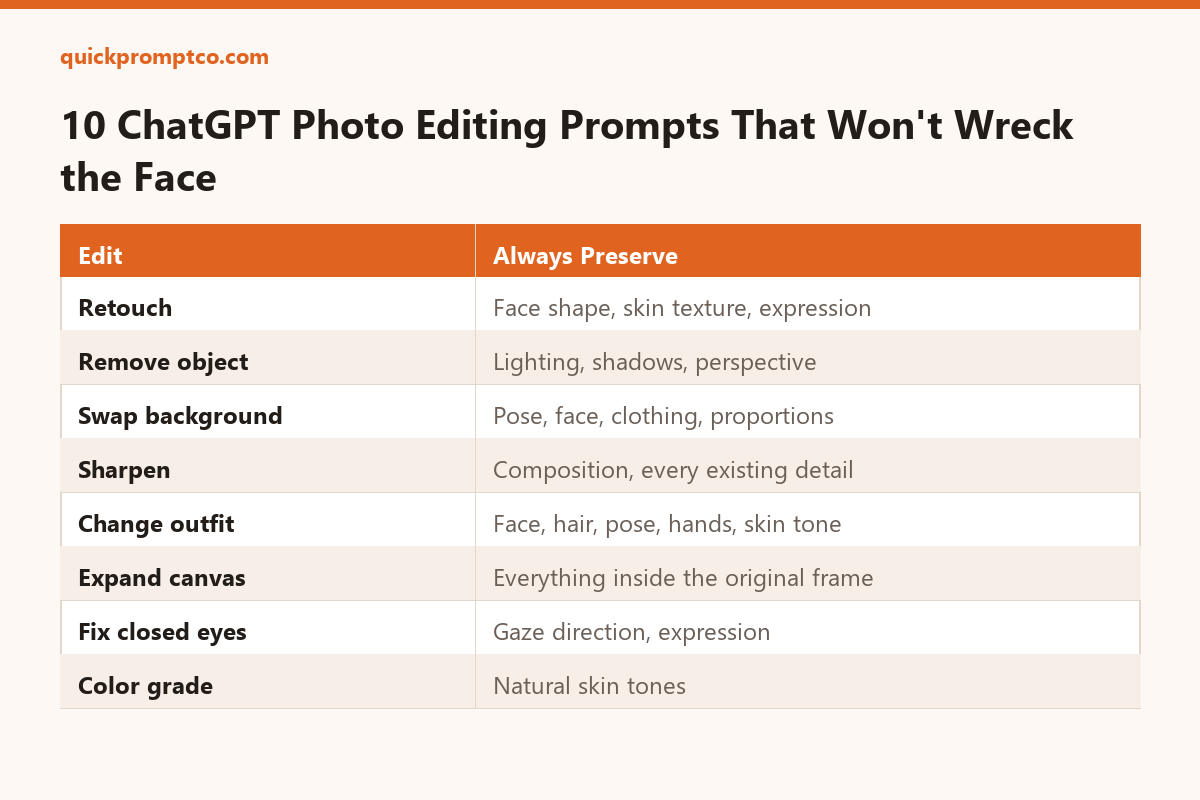
Type “fix this photo” into ChatGPT and you’ll usually get a face that looks airbrushed into someone else. That’s not a limit of the model — it’s a missing instruction. ChatGPT treats anything you don’t explicitly protect as fair game, skin included, so a one-line request leaves it guessing at everything you didn’t say.
The fix is a two-part prompt: say what to change, then say what to leave alone. The 10 prompts below are built that way, covering the edits people ask for most. Upload your photo first, then paste whichever one matches what you need.
1. Professional Retouch
For everyday portraits that just need cleanup, not a makeover.
Retouch this photo professionally — even out skin tone, reduce blemishes, sharpen focus, and balance lighting and color. Do not change the person's face shape, features, proportions, hairstyle, or expression. Keep the result looking like a real, unedited photo of the same person.
2. Remove an Unwanted Object or Person
For photobombers, stray objects, or background clutter.
Remove [describe the object or person] from this photo and rebuild what's behind it. Match the existing lighting, shadows, texture, and perspective so the area looks like it was never disturbed.
3. Swap the Background
For changing the setting without reshooting.
Replace the background with [describe the new background] and keep the subject exactly as they are — same pose, face, hair, clothing, and proportions. Adjust the lighting and color on the subject so they look like they were actually photographed in the new setting.
4. Sharpen Without Losing Realism
For blurry, low-res, or poorly lit photos.
Sharpen and clean up this photo — improve resolution, reduce blur, and correct exposure — while keeping the composition, subject, and every detail exactly as they are. Avoid any artificial or over-processed look.
5. Change the Outfit
For trying on a different look without a reshoot.
Change the outfit to [describe the new outfit], fitted naturally to the body. Keep the person's face, hair, pose, hands, skin tone, and background completely unchanged.
6. Expand the Canvas
For turning a tight crop into a wider shot.
Extend this photo to a [aspect ratio or size] canvas by continuing the existing background naturally in every direction. Do not alter anything currently inside the frame.
7. Shift the Time of Day
For turning a flat afternoon shot into golden hour or night.
Change the lighting in this photo from [current time of day] to [golden hour / blue hour / night], adjusting the sky, shadows, and color temperature to match — without changing the subject or composition.
8. Open Closed or Squinting Eyes
For the one shot in the burst where everyone’s eyes were open — except one person.
Fix the person's closed or squinting eyes so they appear naturally open, matching their gaze direction and expression. Keep every other part of the face and photo unchanged.
9. Smooth Wrinkled Clothing
For creased shirts and rumpled fabric in an otherwise good shot.
Smooth out the wrinkles and creases in the clothing while keeping the fabric's texture, fit, and folds looking natural — not flattened or painted-on. Leave the rest of the photo untouched.
10. Apply a Cinematic Color Grade
For giving a flat photo a finished, intentional look.
Apply a cinematic color grade to this photo — balance the highlights and shadows, and adjust contrast and saturation for a polished, consistent tone. Keep skin tones natural and leave the subject and composition unchanged.
Why These Prompts Work
Every prompt above follows the same shape: an instruction for what to change, and a separate instruction for what to leave alone. ChatGPT treats an unprotected photo as fully editable, so skipping the second half is what causes faces to drift, skin to over-smooth, or backgrounds to shift in ways you didn’t ask for.
When the result comes back, compare it side-by-side with the original. Check that the thing you wanted changed actually changed, and that everything else still looks like the same person in the same photo. If something drifted, name it specifically in your next message — “the skin looks too smoothed, keep more natural texture” — instead of retyping the whole prompt from scratch.
Leave a Reply