
Most people use Claude like a search box: ask, read, close the tab, start from zero next time. The people who get the most out of it spend a little time setting it up once, so it already knows who they are, what they’re working on, and which apps they use.
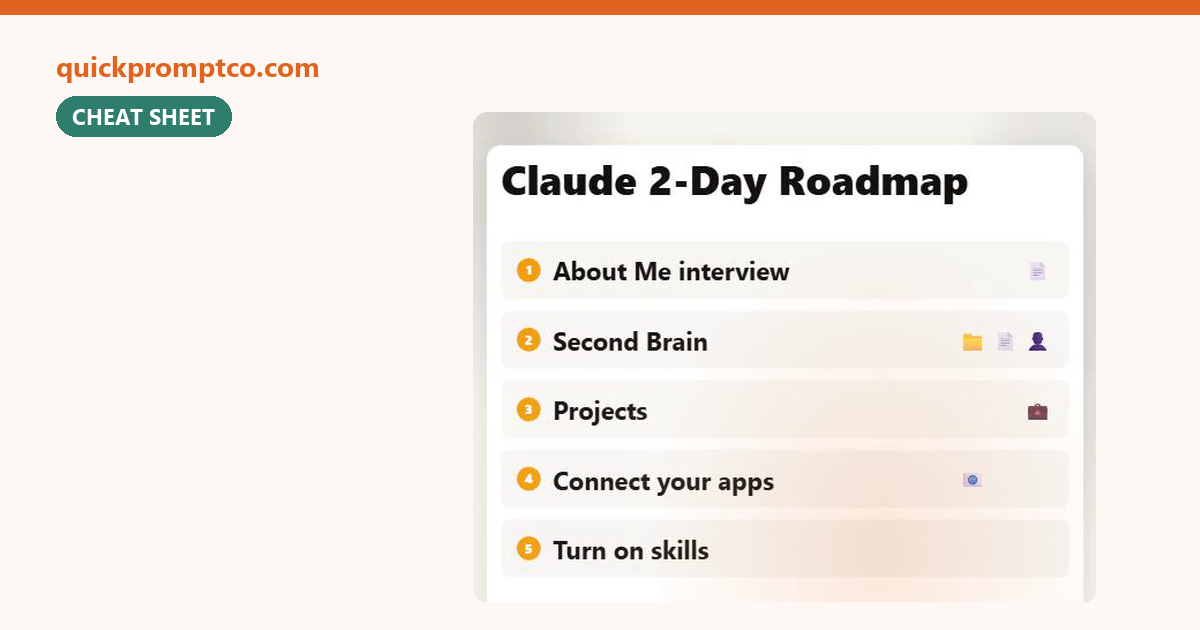
This is that setup, split into five steps over two days. Each step takes under an hour, needs no coding, and comes with a prompt you can copy.
The Plan
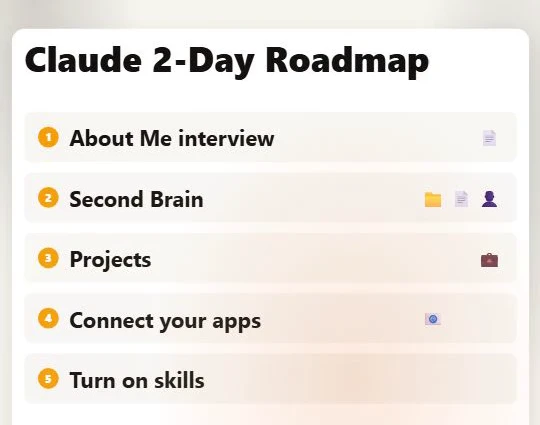
- Day 1 morning: Step 1, a doc about you, written by Claude after it interviews you.
- Day 1 afternoon: Step 2, one Second Brain project. Step 3, a project for each part of your life.
- Day 2 morning: Step 4, connect the apps you already use.
- Day 2 afternoon: Step 5, turn on skills so Claude makes real files.
- Plan: everything here works on the free plan, with a few limits noted below.
On this page (9 sections)
Day 1
Step 1. Let Claude Interview You (Your About Me Doc)
Why do this
~45 min
Every new chat starts with Claude knowing nothing about you. A one-page doc about your work, goals and style fixes that, and Claude is better at asking the right questions than you are at writing it from scratch.
Open a new chat and paste this. Answer as briefly or as fully as you like; you can say “skip” to any question.
Interview me so you can write an "About Me" document I can give to any AI.
Ask me 50 questions, one at a time, about my work, my goals, the people I work with, my typical week, the tools I use, and how I like answers written.
Wait for my answer before asking the next question.
When we're done, write the document in clear headings, under 2 pages.When it worked: Claude asks one question, waits, then asks the next. At the end it gives you a short document with headings like Work, Goals and How I like answers. Save it as a file (copy it into a doc and download it). You’ll use it in Steps 2 and 3.
Want it in every chat, too?
Paste the most important lines into Settings > Your Claude, under Instructions for Claude. Those apply to every conversation. Claude’s memory, which is on by default for individual plans, also picks up details as you chat.
Step 2. Build a Second Brain Project
Why do this
~30 min
A Second Brain is one place that holds everything Claude should always know: your About Me doc, your notes, the files you keep re-explaining. In Claude, the simplest version is a project.
Go to claude.ai/projects, click + New Project, and name it “Second Brain”. Add your About Me doc and any notes or reference files to the project’s knowledge. Then start a chat inside it and paste:
You have my About Me doc and my notes in this project.
Read them and tell me:
1. A 5-line summary of who I am and what I'm working on
2. What's missing that would help you help me
3. Which files look out of dateWhen it worked: Claude answers with details only you gave it, like your job and current goals, without you repeating them. Anything it lists as missing, add to the project.
Step 3. Make a Project for Each Part of Your Life
Why do this
~30 min
One big project gets crowded. A project per area, like Work, Side Project or Home, keeps each one focused, and every chat inside it starts with the right files.
In your Second Brain chat, ask Claude to plan the split:
Based on everything in this project, suggest 3 to 5 separate projects I should make,
one per area of my life or work.
For each one, give me: a name, a one-line description, and which of my files belong in it.When it worked: You have a short list of projects with files sorted into each. Create them the same way as Step 2 and add your About Me doc to each one. Start a chat in one and ask “what’s on my plate this week?”: Claude should answer using that project’s files.
Free plan: 5 projects
Free accounts can create up to five projects (What are projects?). Count your Second Brain in that, so pick your top four areas. Paid plans get more room for large files in a project.
Day 2
Step 4. Connect the Apps You Already Use
Why do this
~30 min
Copying emails and calendar events into a chat gets old fast. Connectors let Claude look things up in Gmail, Google Calendar, Notion, Slack and more on its own, when you ask.
Go to Customize > Connectors, click + next to Connectors, and pick from the directory. You’ll sign in to each app and approve access. In any chat, the + button (or typing /) > Connectors lets you switch them on or off. Then try:
Look at my calendar for this week and my unread email from the last 2 days.
Make me a short list: meetings I need to prepare for, emails that need a reply,
and anything that clashes. Don't send or change anything.When it worked: Claude shows which connector it’s using, then answers with your real meetings and emails. Per the help center, Gmail sending and replying ask for your approval first by default.
| App | What Claude can do (help center) |
|---|---|
| Gmail | Search and read email, draft, and send or reply with your approval |
| Google Calendar | See events, find free time, create or change events |
| Notion, Slack and others | Listed in the connectors directory; what each can do depends on the app |
Work account?
On Team and Enterprise plans, an admin has to turn connectors on first (Google Workspace connectors). Anthropic says it doesn’t train models on Gmail, Drive or Calendar connector data.
Step 5. Turn On Skills
Why do this
~20 min
Skills let Claude produce real files, like a spreadsheet, a Word doc or a slide deck, instead of just text to copy. Claude already has built-in skills for Excel, Word, PowerPoint and PDF.
Go to Settings > Capabilities and turn on Code execution and file creation (called Create and edit files in the newer layout). Your skills then show up under Customize > Skills. Test it in one of your projects:
Using what you know from this project, make me a one-page weekly planner
as an Excel file: my recurring meetings, my top 3 goals, and empty slots for each day.When it worked: Claude makes a file you can download and open, not a table in the chat. If you don’t see Skills, the file-creation setting above is usually the reason.
Later, you can teach Claude your own way of doing a task and save it as a custom skill: Customize > Skills > + > Create skill. Start with the built-ins first.
What Changes After Two Days
| Before | After |
|---|---|
| Re-explaining yourself in every chat | Claude starts from your About Me doc |
| One long, messy chat history | A project per area, each with its own files |
| Copy-pasting emails and dates | Claude reads your calendar and email when you ask |
| Text you have to reformat | Real files you can open and share |
Reading about this won’t change much. Doing Step 1 today will.
FAQ
Do I need a paid Claude plan?
No. Projects, connectors and skills are all on the free plan. The limits we found: five projects on Free, one custom connector, and less room for big files in a project.
Is it safe to connect my email?
You choose each connector and can disconnect it any time in Customize > Connectors. Sending email asks for your approval by default. Only connect accounts you’re comfortable with Claude reading.
Can I do this on my phone?
Connectors work in the Claude mobile apps, and you can chat in projects there. Setting things up is easier on a computer.
Why 50 questions?
It’s enough to cover work, goals and style without becoming a chore. Say “skip” to anything, or ask for 20 if you’re short on time.
Related
More simple AI tips on our guides page, like 5 prompts that make your AI show proof.
More Like This, in 30 Seconds
Bunji AI turns one useful AI tip into a short video, most weeks. Follow along:
Menu names checked against the Claude Help Center on November 2, 2026. Claude changes its settings layout often; if a menu has moved, search the help center for the feature name.