Updated October 22, 2026 — now includes the brand-consistency formulas
Midjourney prompts follow a predictable structure. Once you know the parts, you can build almost any image prompt without guessing. This is the fundamentals sheet. Already comfortable and need a whole set to match? Jump to keeping one look across a set.
TL;DR
- Formula: subject, medium, lighting, composition, detail, then parameters at the very end.
- Specific subjects beat clever ones. Lighting changes mood more than almost any other word.
- Leave off
--vto use the current default model (V8.x as of September 2026).
On this page (12 sections)
Cheat Sheet at a Glance
| Parameter | What it does | Example |
|---|---|---|
--ar | Aspect ratio (images start square) | –ar 16:9, –ar 9:16 |
--no | Exclude something | –no text |
--chaos / --c | More varied results in the grid | –chaos 30 |
--stylize / --s | How much artistic flair Midjourney adds | –s 50 |
--raw | Less automatic styling, closer to your words | –raw |
--seed | Repeatable starting point for tests | –seed 42 |
--hd | Higher-resolution (2048px) V8.1 images | –hd |
Slot Tips
- Subject: “A dog” gives you a random dog. “A wet golden retriever shaking off water on a beach at sunset” gives you a scene.
- Medium: name it directly: oil painting, watercolor, 35mm photograph, isometric 3D render, pencil sketch. An art movement (“art deco”, “ukiyo-e”) works better than an artist’s name.
- Lighting: golden hour, blue hour, harsh studio light, soft diffused light, backlit, neon-lit.
The Prompts
The basic formula
Use it for: Every prompt.
[subject], [style / medium], [lighting], [composition], [extra detail] --ar [ratio]Worked example
a lighthouse on a rocky cliff, oil painting, golden hour lighting, wide shot, stormy sea in background --ar 16:9Sample run · Gemini 3.1 Flash Image (Nano Banana 2), October 2026. Midjourney flags dropped, aspect ratio kept; Midjourney itself will render it differently.
Input we used: The worked example above, exactly as written.
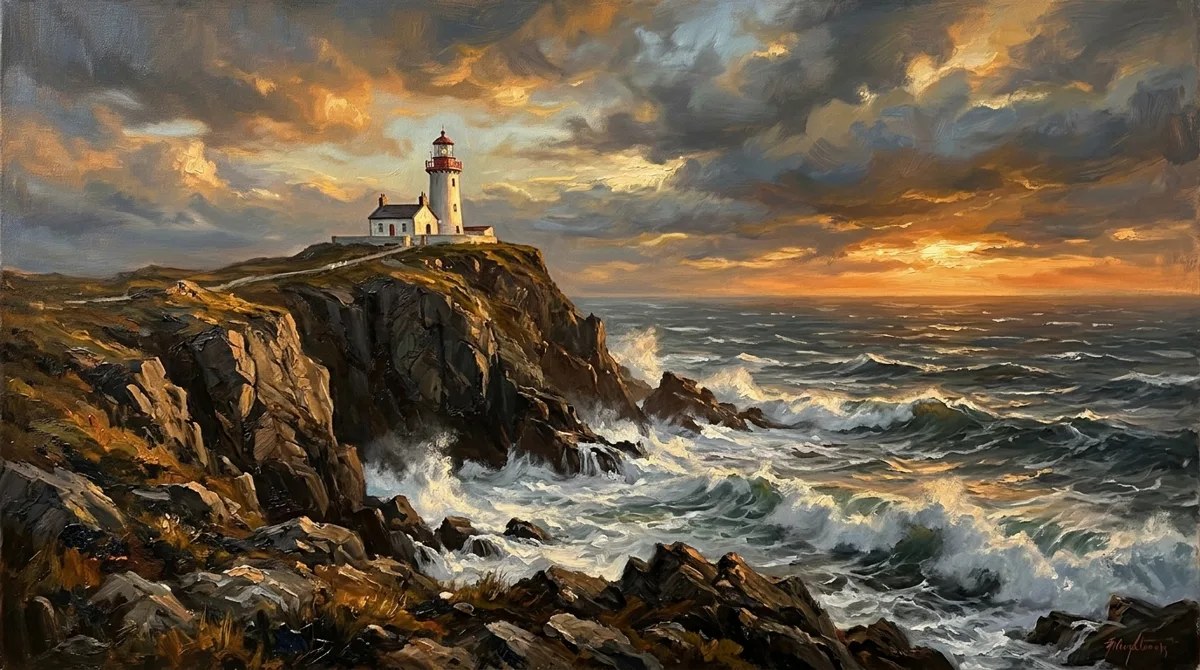
All five slots show up: subject, oil-paint texture, warm low sun, a wide frame, and the storm behind. The lighting slot did the most work; drop “golden hour” and you get flat midday light.
Why it works: Each comma-separated part fills one slot of the formula.
Starter template
Use it for: Fill in and go.
[subject doing something specific], [medium], [lighting], [camera angle], highly detailed --ar 16:9Vertical cover for Shorts or Reels
[subject], [medium], bold simple composition with empty space at the top, [lighting] --ar 9:16 --no textSample run · Gemini 3.1 Flash Image (Nano Banana 2), October 2026. Midjourney flags dropped, aspect ratio kept; Midjourney itself will render it differently.
Input we used: a lone hiker standing on a mountain ridge, flat digital illustration, bold simple composition with empty space at the top, soft early-morning light –ar 9:16 –no text
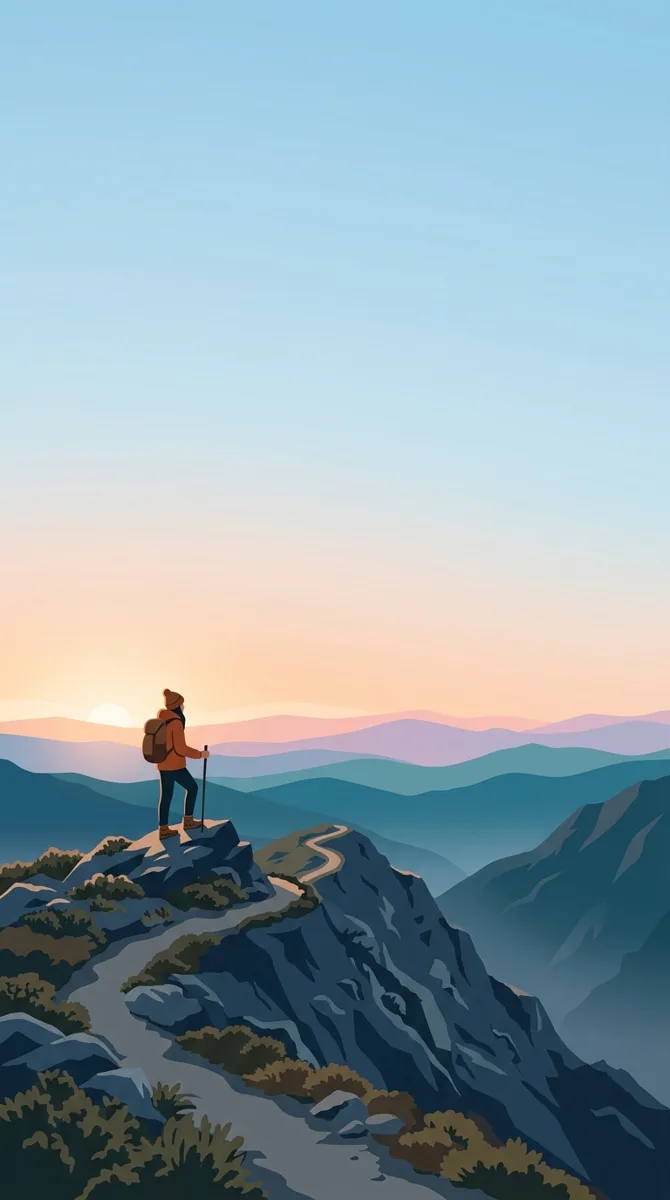
The “empty space at the top” slot is why this works as a cover: the upper third is clear for your title, and “no text” kept the model from adding its own lettering there.
Worked Example: Building One Prompt Slot by Slot
Watching a prompt grow shows which words actually change the image. Start with a bare subject and add one slot per generation:
| Round | Prompt | What changes |
|---|---|---|
| 1 | a cabin | Random style, random season, centered and bland |
| 2 | a small wooden cabin in a snowy pine forest | A real scene; still no mood |
| 3 | … , 35mm photograph | Looks photographic instead of illustrated |
| 4 | … , blue hour, warm light glowing from the windows | Mood appears; this is usually the biggest jump |
| 5 | … , wide shot from a low angle –ar 16:9 –raw | Composition and framing settle; less automatic styling |
Round 4 is the lesson: lighting does more for mood than any adjective like “beautiful” or “stunning”. If an image feels flat, change the lighting phrase before anything else.
Starter Parameter Combos
Parameters are easier to learn in combinations that solve a real problem:
| You want | Add | Why |
|---|---|---|
| A realistic photo | –raw –s 50 | Less house style, closer to your words |
| Ideas to choose from | –chaos 40 | The grid spreads out instead of four near-copies |
| A clean background for text | –no text, clutter | Removes the two things that fight with a headline |
| To compare two wordings | –seed 42 on both | Same starting noise, so the wording is the only difference |
| A print-quality image | –hd | Higher resolution output in V8.1 |
How to Read a Bad Result
When the image misses, diagnose before you rewrite. Most misses fall into three buckets:
- Wrong subject or missing object: the subject phrase is too vague or too long. Move the most important thing to the start of the prompt and describe it plainly.
- Right subject, wrong feel: change the medium or lighting slot, not the subject.
- Too stylized or “too Midjourney”: add
--rawand lower--stylize.
Change one slot per round. If you rewrite the whole prompt every time, you learn nothing about which part was the problem.
Keep One Look Across a Whole Set
Once single prompts work, the next problem is a set that looks like it came from five different artists. Consistency comes from locking the parts of the prompt that shouldn’t change. Four tools do it:
1. Build a reusable style suffix
Use it for: The base of every prompt in the set.
[your subject description], soft studio lighting, muted earth-tone palette, shot on 50mm lens, shallow depth of field, minimalist composition --ar 4:5 --rawWhy it works: Keep everything after the subject identical. That’s what creates the same-photographer feel.
2. Match an approved image with –sref
Use it for: Once you have one image you love.
[new subject description], [your style suffix] --sref [URL of approved image] --sw 200Why it works: –sref matches style (color, texture, mood), not the exact subject. Raise or lower –sw to change how strongly it applies.
3. Keep the same subject with the Edit Model
Use it for: Recurring product, mascot, or person in V8.x.
Place this product on a marble kitchen counter in morning window light, keep the label and shape exactly the same --editWhy it works: Midjourney’s docs say Omni Reference was replaced by the Edit Model in V8.x. Attach up to four reference images and describe the change in plain language.
4. Test variations with a fixed seed
Use it for: Comparing one wording change.
[your prompt] --seed 12345Why it works: Same seed plus a small edit gives comparable results, so you can see what the edit actually changed.
Build a One-Page Brand Prompt Sheet
Consistency breaks when the working prompt lives only in your Midjourney history. Keep a short sheet with every locked value, and paste from it every time:
BRAND PROMPT SHEET: [brand name]
Style suffix: soft studio lighting, muted earth-tone palette, shot on 50mm lens, shallow depth of field, minimalist composition
Style reference: --sref [approved image URL] --sw 200
Version: --v [number]   (locked for the whole campaign)
Raw: --raw   (yes / no)
Test seed: --seed 12345
Aspect ratios: feed 4:5 | story 9:16 | banner 16:9 | thumbnail 1:1
Never use: neon, text in image, stock-photo smilesThe Version line is the one people skip. Without it, new prompts use whatever the default model is on the day you generate. If the default changes mid-campaign, images from week one and week six can look different even with identical prompts.
Worked Example: A Four-Image Product Set
Say you need a feed post, a story, a banner, and a thumbnail for one product. Only the scene and aspect ratio change; everything else comes from the sheet:
| Placement | Scene (the only part you write) | Locked parts |
|---|---|---|
| Feed | ceramic mug on a linen tablecloth | suffix + –sref + –v + –ar 4:5 |
| Story | ceramic mug on a windowsill, steam rising | suffix + –sref + –v + –ar 9:16 |
| Banner | three ceramic mugs in a row on a wooden shelf | suffix + –sref + –v + –ar 16:9 |
| Thumbnail | close-up of the mug handle and glaze | suffix + –sref + –v + –ar 1:1 |
When one image in the set looks off, change one thing at a time. Keep the seed fixed and adjust only --sw, or only one phrase of the scene. If you change two things at once, you won’t know which one fixed it.
Save What Works
Once a prompt produces something you like, copy the full prompt (parameters included) into a note with the image. Your saved prompts turn into your personal cheat sheet, and they’re the starting point for the brand-consistency formulas above when you need a whole matching set.
Common Mistakes to Avoid
- Putting text after the parameters. Parameters go at the very end, with a space before the dashes and no punctuation.
- Copying –v 6 or –cref from old tutorials. Those target older models. Leave –v off for the current default.
- Writing an essay. Clear, specific phrases beat long paragraphs.
Q&A
Why doesn’t my result match the prompt?
Try –raw to reduce automatic styling, make the subject more specific, and remove conflicting descriptions.
Where’s the full parameter list?
Midjourney’s Parameter List page, linked below, covers every current parameter, plus a link to legacy ones.
How many words should a Midjourney prompt be?
Usually 10 to 40. Past that, later phrases get less weight and start to conflict. If a detail matters, move it closer to the start instead of adding more words.
Can I use an artist’s name?
You can, but naming a medium, era, or movement (“1970s film photograph”, “art nouveau poster”) is more predictable and avoids imitating a living artist’s style. It also transfers better when you switch tools.
Why do I get four images?
The grid is four variations of the same prompt. Pick the closest one and use the variation or upscale options under it, instead of rerunning the whole prompt.
Related Guides
Official Resources
- Midjourney Parameter List — official, every current parameter
- Style Reference docs — –sref, –sw, –sv
Saved you a few rounds of back-and-forth? Follow us on X for more cheat sheets and setup guides.
Comments
3 responses to “How to Write Midjourney Prompts: A Beginner’s Cheat Sheet (V8 Parameters)”
[…] to Midjourney? Start with the beginner’s cheat sheet for the basic prompt formula, then come back here once you’re generating a consistent […]
[…] Midjourney prompt cheat sheet […]
[…] Midjourney prompt cheat sheet […]