
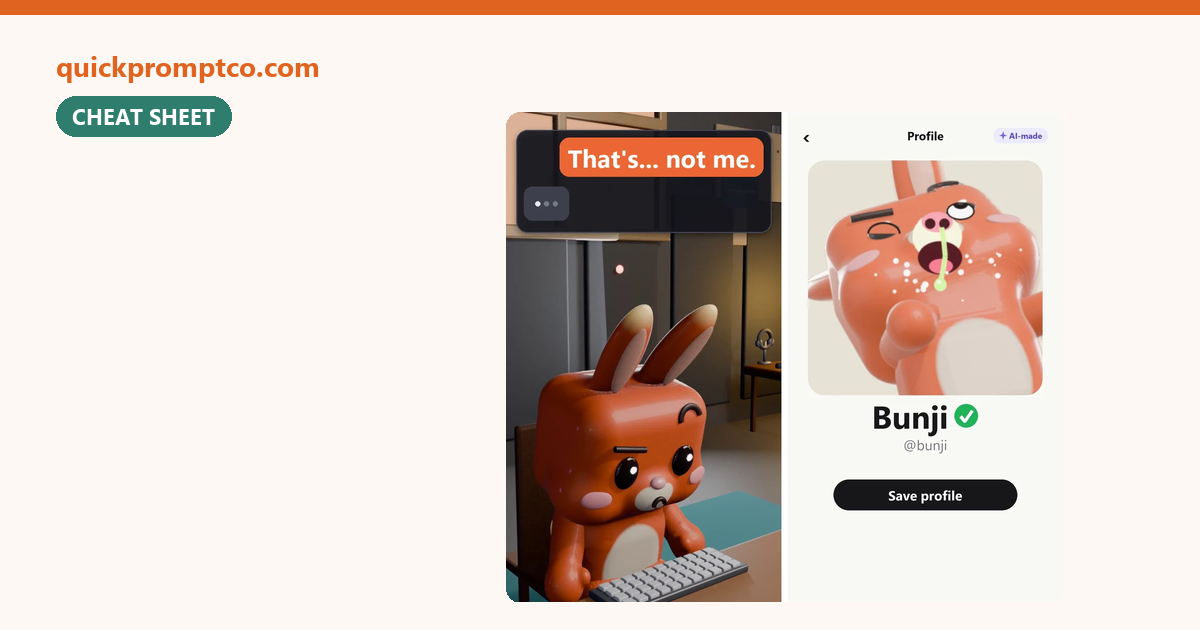
You ask an AI to do something. It answers “Done!” with a cheerful checkmark. Then you look, and it isn’t done at all: the photo is of someone else, half the list is missing, or the “fix” broke something new. The AI wasn’t lying on purpose. It just said done without looking.
The fix is simple: don’t ask if it’s done. Ask it to show you. Below is a 30-second checklist and five prompts you can copy into any AI chat, like ChatGPT, Claude or Gemini.
In this guide: the 30-second check · 5 copy-paste prompts · warning signs · FAQ
The Short Version
- “Are you sure?” doesn’t work. The AI almost always says yes. Ask for proof instead.
- Proof means two things: the actual result, and a list of what it checked.
- Set the rule at the start of a chat and you won’t have to repeat it (prompt 5).
On this page (4 sections)
The 30-Second Check
Before you trust a “Done!”, run through these:
- See it yourself. Open the photo, file or text. A summary of the result is not the result.
- Hold it next to your request. Go through what you asked for, one item at a time.
- Check one detail closely. A name, a number, a face. If one is wrong, look at the rest too.
- Ask what it skipped. AIs fill gaps with guesses. Make it tell you where (prompt 4).
- After a “Fixed!”, check again. Fixes can bring the old mistake back or break something else.
5 Prompts That Make Your AI Show Its Work
Paste these as they are, or change the wording. They work best right after the AI says it’s finished.
1. Show me, don’t tell me
Use when: it says done but only describes what it did.
Before you call this finished, show me the final result itself, not a summary of it. Then list each thing I asked for and point to where I can see it in the result.2. Check it against my request
Use when: the request had several parts.
Go through my original request line by line. For each part, write Done, Partly done, or Not done, and quote the bit of your result that shows it. Do not skip any part.3. Compare with the original
Use when: it edited a photo, document or anything you gave it.
Compare your new version with the original I gave you. List what changed and what stayed the same. If anything changed that I didn't ask for, tell me and fix it.4. What didn’t you check?
Use when: the answer sounds too confident.
Tell me everything you assumed, skipped, or couldn't check while doing this. Be honest even if the list is long. Don't say it's done until you've told me.5. Set the rule up front
Use when: starting a new chat or a bigger task.
For this whole chat: never tell me something is done without proof. Proof means you show the actual result and a short list of what you checked. If you couldn't check something, say so.Why “Are you sure?” fails
It asks the AI for confidence, and confidence is easy to give. Prompts 1 to 4 ask for something it has to go and look at, which is where the mistakes show up.
Warning Signs of a Fake “Done!”
| What the AI says | What it often means | What to send |
|---|---|---|
| “Done!” with nothing to look at | It described the result instead of making it | Prompt 1 |
| “Fully checked!” with no list | Nothing was actually checked | Prompt 2 |
| “Fixed!” but the same problem is back | It changed something else, not the problem | Prompt 3 |
| “Absolutely, 100% done!” | Extra confidence, not extra checking | Prompt 4 |
| “Want me to fix that too?” | It found a new problem it made | Prompt 2, then decide |
FAQ
Why does AI say done when it isn’t?
Chat AIs are built to give a complete-sounding answer. Saying “Done!” sounds complete, even when it never compared the result with what you asked for.
Does this work in ChatGPT, Claude and Gemini?
Yes. These are plain-English instructions, not special commands, so you can paste them into any AI chat.
Do I need to send all five prompts?
No. Prompt 5 at the start of a chat covers most cases. Use 1 to 4 when a result looks off.
What if it still gets it wrong after showing proof?
Then you’ve caught it before it cost you anything. Point to the exact part that’s wrong and ask it to redo only that part.
Related
More simple AI tips on our guides page, like prompts that stop ChatGPT changing faces.